I use my Piano Casio Privia PX-160 connected with USB to my Windows 11 computer with Ableton Live 12, with no special sound card dedicated at all (using the default one included in my mainboard).
My problem is that I am trying to use ASIO4ALL without losing all the audio from windows when Ableton is active and connected to my piano. I know that this is normal, because ASIO4ALL takes exclusive access of the sound for Windows to reduce latency. BUT, I saw this video that claims that you can use asio4all along with Voice Meeter Banana to achieve zero latency and preserve windows audio:
https://www.youtube.com/watch?v=_yEp5mXNv1A
The problem is that I cannot follow the exact instructions in the video, because I find differences between what it is being shown in the video and my current computer; For example, at the video they show that the asio4all config screen includes the "...AUX VAIO" entry of voice meeter (second line):
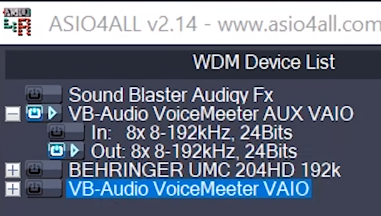
... But It does not appear in my computer:
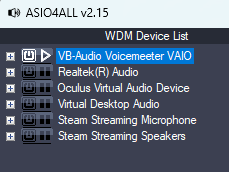
As you can see, no AUX entry is present for VoiceMeeter...
Meanwhile, instead of using asio4all and selecting that aux vaio entry, I have changed the audio preferences in Ableton, from "asio4all v2" to "Voicemeeter AUX Virtual ASIO":
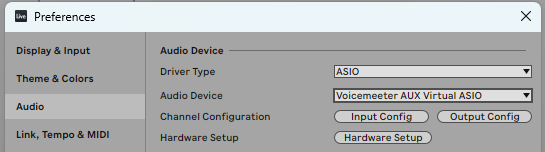
(The "Hardware Setup" button is unoperative in this case)
This way I am able to hear the piano and windows sounds together which is great, but I think that it may not be as good solution as the proposed one in the video, because it may introduce an almost non noticeable latency (almost 0)...
Can it be that the guy in that video have an Audigy card or other hardware that allow him to visualize that AUX VAIO entry that I am unable to find?
Thanks in advance !